
Download Patch Cleaner – Free Windows Installer Directory Cleaner for Disk Space Optimization
Patch Cleaner is a lightweight, free Windows utility designed to help users reclaim valuable disk space by scanning and cleaning up outdated and orphaned files in the c:\Windows\Installer directory. Unlike manual deletion, which risks system instability, Patch Cleaner uses Windows Management Instrumentation (WMI) to safely identify unused .msi and .msp files—installer and patch files that remain after software installations or updates. These files can accumulate over time, consuming gigabytes of space without serving any purpose.
Patch Cleaner ensures you only remove what’s safe to delete, offering options to move files to a backup folder or permanently delete them. Compatible with Windows 7, 8, 10, and Windows Server, the tool runs on .NET Framework 4.5.2 or higher. It’s not available for Mac, Linux, Android, or iOS.
With a clean interface, automated scanning, and a built-in command-line interface, Patch Cleaner is ideal for both casual users and IT professionals seeking a secure way to maintain a faster, cleaner system.
Why Use Patch Cleaner to Optimize Your Windows Disk Space?
Modern Windows systems store installer and patch files in the c:\Windows\Installer directory to support future repairs, updates, or uninstalls. While this is useful in theory, in practice, these files often become obsolete. Over time, they pile up—sometimes taking up 10GB or more—without any real benefit.
This is where Patch Cleaner steps in as a smart, secure solution. Instead of blindly deleting files from this hidden folder (a risky move that can break software), Patch Cleaner cross-references every .msi and .msp file against the Windows registry and installed programs list using WMI. Files without a matching installation entry are flagged as orphaned.
The tool then presents you with a clear list of what can be safely removed. You can choose to move these files to a designated backup folder for later review or delete them permanently. This two-step safety net ensures you won’t accidentally delete a file needed for a future repair.
For users who prefer automation, Patch Cleaner can be set to scan automatically every time it launches. This makes it ideal for routine maintenance. Whether you're a home user with a cluttered C drive or an IT admin managing multiple workstations, Patch Cleaner offers a reliable way to maintain system health without deep technical knowledge.
How Patch Cleaner Works: A Safe, Step-by-Step Process
Using Patch Cleaner is straightforward and designed with user safety in mind. Upon launching the app, it begins scanning the c:\Windows\Installer directory automatically. If needed, you can manually trigger a refresh by clicking the “Refresh” button.
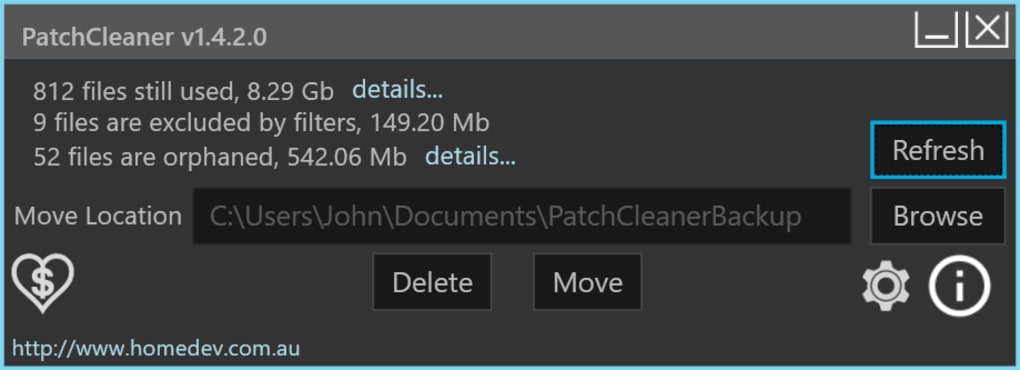
The scan analyzes every .msi and .msp file and checks its status against the Windows registry and installed applications. Files that don’t have a corresponding installation are marked as orphaned. Once the scan completes, Patch Cleaner displays a summary: the number of files detected, the total size of removable data, and a breakdown of file types.
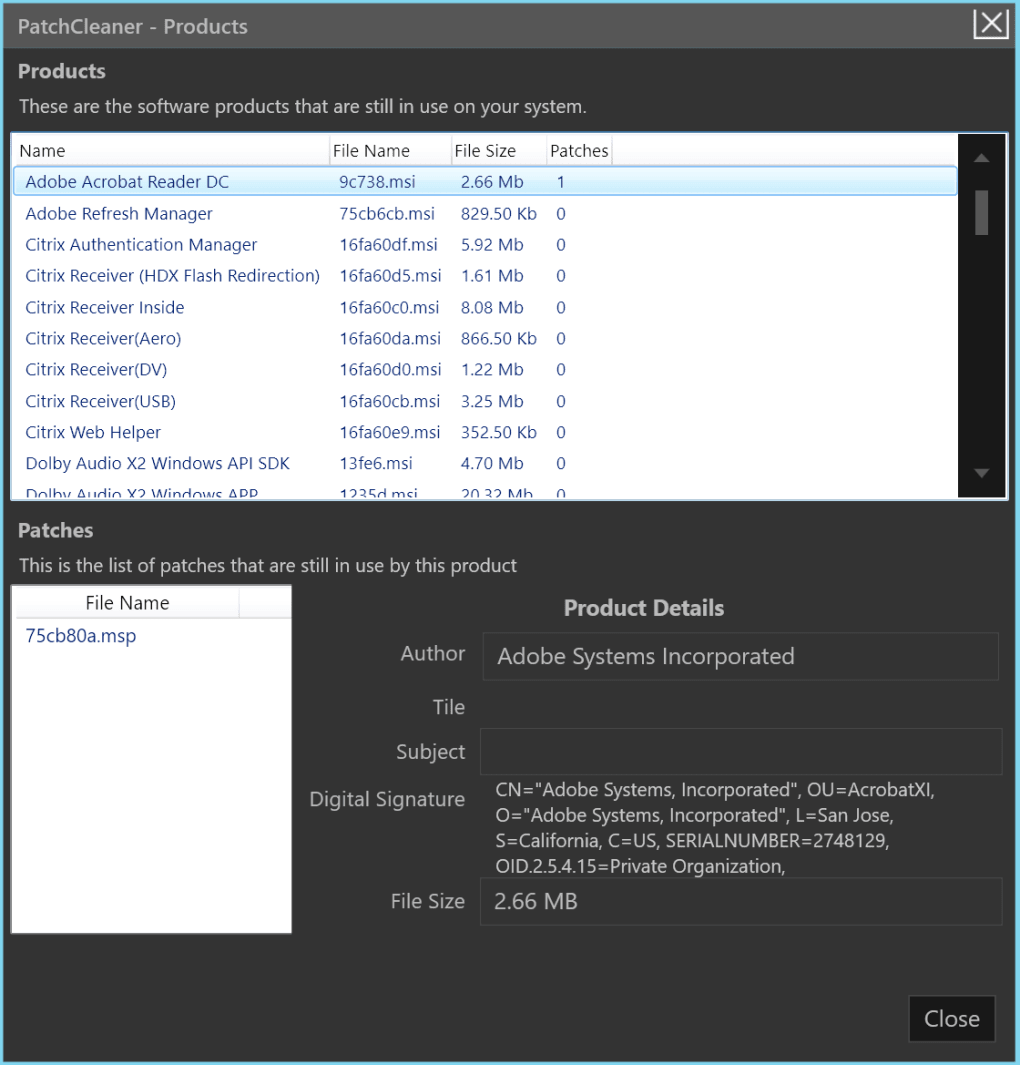
Clicking “More Details” reveals a comprehensive list, including file names, sizes, and whether they’re still in use. This transparency is crucial—users can verify each file before acting. You can also apply filters to exclude certain file types or known safe files from deletion.
For example, if you're unsure about a specific patch, you can skip it. The two main actions are “Delete” (permanent removal) and “Move” (relocating files to a backup folder). This allows you to test the impact of removals before committing.
For advanced users, Patch Cleaner supports command-line execution starting from version 1.3. Using switches like /d (delete), /m (move to default location), or /m[FilePath] (move to custom path), you can integrate it into batch scripts or automated cleanup tasks. This makes it a powerful tool for system administrators managing multiple machines.
Key Features and Benefits of Patch Cleaner
- Scans and identifies orphaned .msi and .msp files in
c:\Windows\Installer - Uses Windows Management Instrumentation (WMI) for accurate file validation
- Safe deletion with move-to-backup option for risk-free cleanup
- Automatic scanning on launch (configurable in settings)
- Command-line interface (CLI) support for automation (v1.3+)
- Filtering options to exclude specific files from deletion
- Clear, user-friendly interface with detailed file breakdowns
- Compatible with Windows 7, 8, 10, and Windows Server (requires .NET 4.5.2+)
Installation & Usage Instructions
Downloading and installing Patch Cleaner is quick and hassle-free. Visit the official website and download the latest version (free of charge). The installer is a small executable file—no complex setup required.
Run the installer as an administrator to ensure full access to system directories. Once installed, launch the application. The first scan runs automatically, but you can click “Refresh” to start a new scan anytime.
Wait for the results to load. Review the list of orphaned files, use the “More Details” tab to inspect each entry, and apply filters if needed. If you're confident, click “Delete” to remove them permanently.
For added safety, choose “Move” to store files in a backup folder (default: c:\PatchCleaner_Backup). You can later review or restore them if needed. For scripting or automation, use the command-line interface.
Open Command Prompt or PowerShell and run commands like PatchCleaner.exe /d to delete all flagged files, or PatchCleaner.exe /m C:\Backup\Patches to move them to a custom folder. Always back up important data before using cleanup tools. Patch Cleaner does not modify the registry or system files—only the c:\Windows\Installer directory.
Pros and Cons of Patch Cleaner
Pros
- Free to download and use with no hidden costs
- Safe and reliable—only removes truly orphaned files
- Simple, intuitive interface suitable for beginners
- Supports command-line automation for advanced users
- Preserves system stability by avoiding critical file deletion
- Helps reclaim significant disk space (often 5–20GB+)
Cons
- Only available for Windows (no Mac, Linux, Android, or iOS support)
- Requires .NET Framework 4.5.2 or higher
- No built-in backup restore feature (files must be manually recovered)
- May occasionally flag files incorrectly (use caution and review)
- Not a full system cleaner—only targets installer directory
Frequently Asked Questions (FAQ)
Conclusion: Is Patch Cleaner Worth Downloading?
If you're running low on disk space and suspect hidden installer files are to blame, Patch Cleaner is a must-have tool. It’s lightweight, free, and specifically designed to clean the c:\Windows\Installer directory without risking system stability. Its intelligent scanning, safe move/delete options, and command-line support make it suitable for both casual users and IT professionals.
While it doesn’t clean other types of junk files (like cookies or temp files), it excels in its niche—optimizing Windows installer space. For anyone looking to free up gigabytes of storage safely, Patch Cleaner delivers exactly what it promises. Don’t wait for your hard drive to fill up.
Download Patch Cleaner today and take control of your system’s performance.
CTA: Download Patch Cleaner for Free Now – reclaim your disk space with confidence.







